
Every app makes perfect sense to the person who built it. The real test is what happens when someone else opens it.
That's where The Hatchery comes in. Other teachers can try your app, share feedback, and help you make it better before you share it with everyone.
And you don't have to build apps to be part of it. If you like trying new classroom tools, The Hatchery is where you can test apps early and help other teachers improve them. It's a place where teachers help teachers.
Why Put an App in Beta?
Other teachers use different devices, teach different grade levels, and have different routines than you do. They might notice things you overlooked.
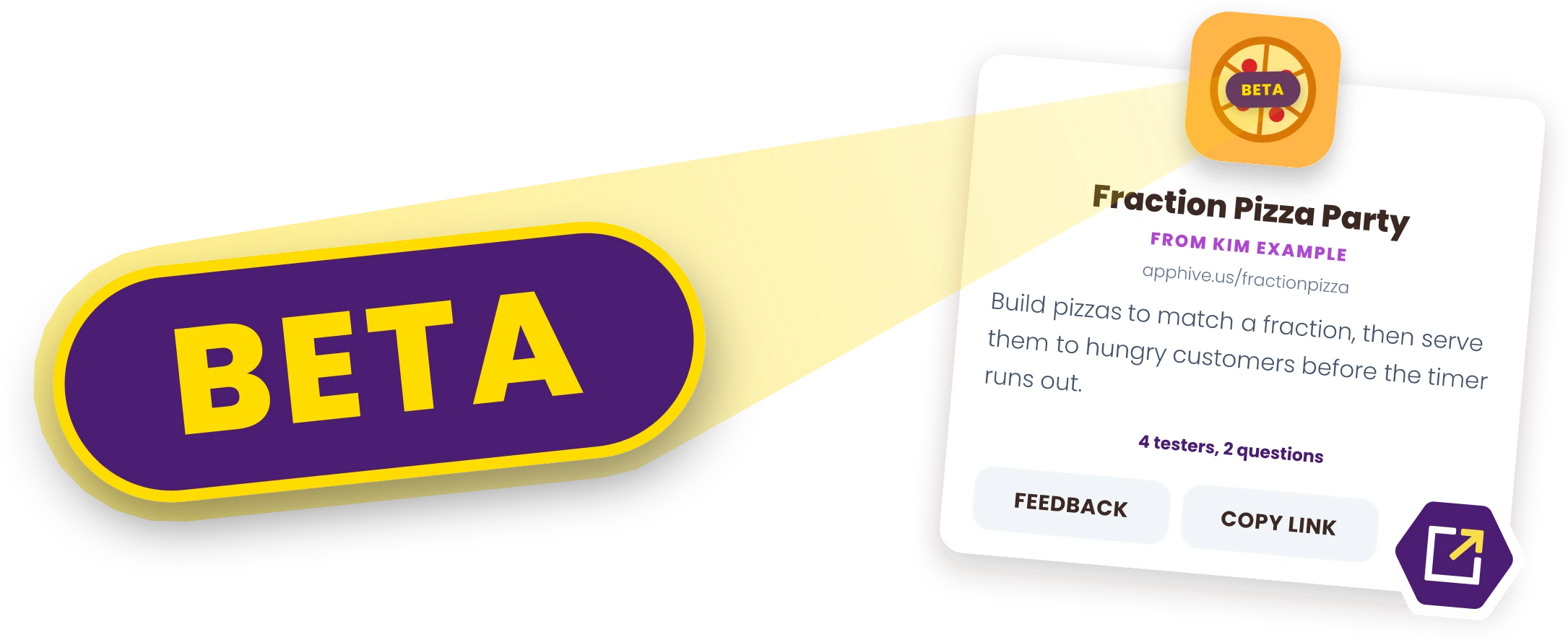
While your app is in beta, the Beta badge lets other teachers know it isn't quite ready for everyone yet. They know they're trying something still in progress, and by the time your app hatches, it's the improved version.
You also get to ask the questions you actually want answered. Testers tell you whether it worked, which grades they tried it with (if any), and what confused them.
And when your app hatches, the teachers who tested it get credit on the app's page.
Not Every App Needs a Beta
Plenty of apps are ready to share as soon as they work. A simple timer, a spinner, or a version of a review game you've played with classes for years probably doesn't need a week of testing. Neither does an app you only plan to use once with your own students.
A beta is especially helpful when you're not quite sure how an app will work for other teachers. Here are some situations where I'd get feedback first:
- You're not sure the app makes sense without you there to explain it.
- It has several screens, modes, or settings, and you wonder if people will find them.
- You built it for a grade level or subject you don't teach and want to hear from teachers who do.
- It uses Superpowers, like saving student work or a Teacher view, and you want to know it holds up with a whole class on different devices.
- It's an idea you love, but you can't tell whether other teachers will find it useful.
- A simple tool that does one thing
- A familiar format you've used for years
- An app just for you
- Several screens or settings
- Made for grades you don't teach
- Superpowers with a whole class
- A new idea you're unsure about
One rule to know: only an app that has never been publicly listed can go into beta. An unlisted app is eligible as long as it has never been public, even if you added it a long time ago.
How to Put Your App in Beta
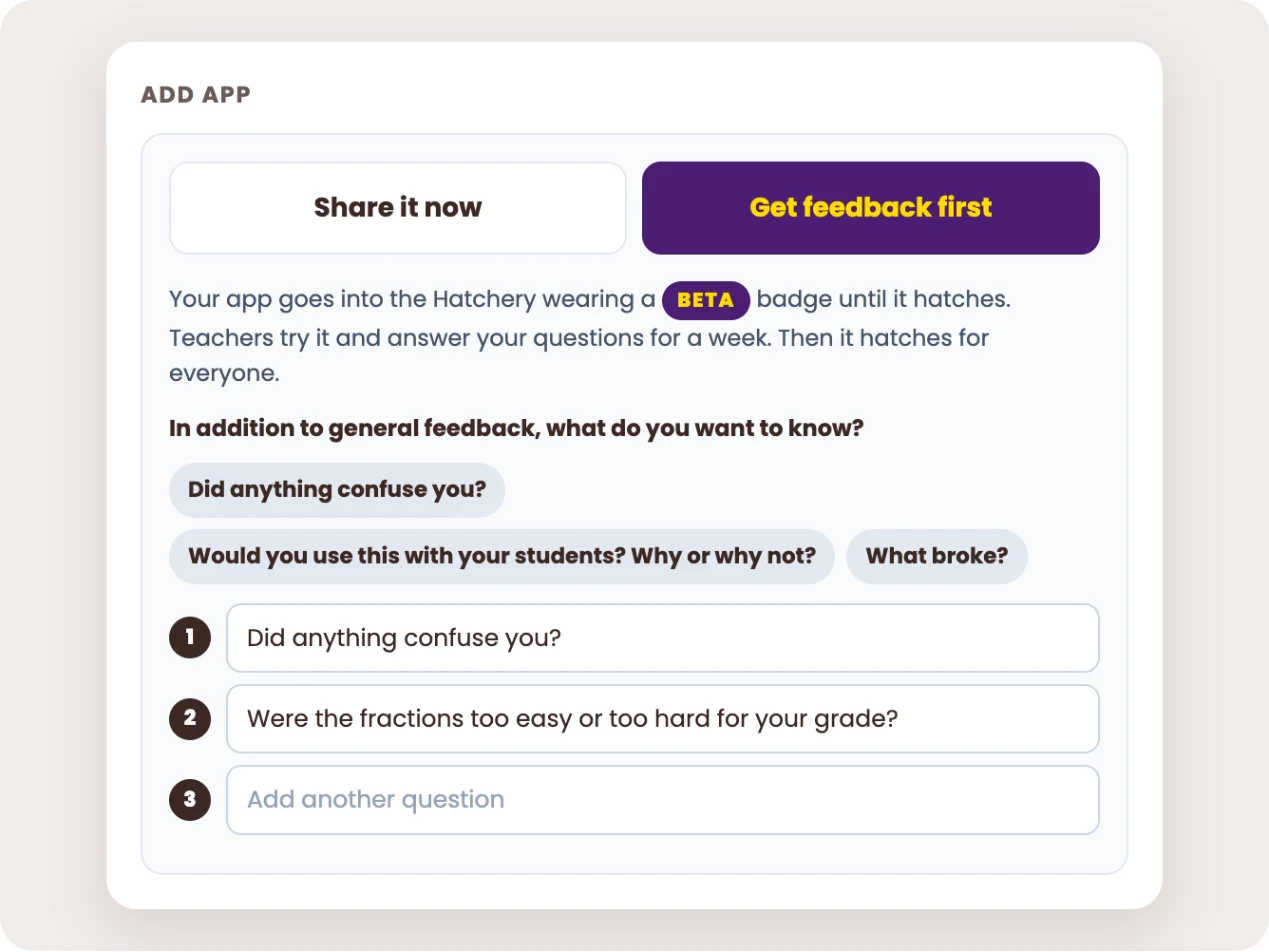
When you add a new app, you'll see two choices: Share it now or Get feedback first. Choose Get feedback first, then add one to five questions. You'll see a few suggested questions to get you started, such as "Did anything confuse you?" You can also write your own. I recommend asking questions that invite teachers to share what they noticed.
After you save, your app appears in The Hatchery with a Beta badge. Teachers who follow you get a notification that you're looking for testers. Beta apps can also show up in the weekly Buzz email and on teachers' Home pages.
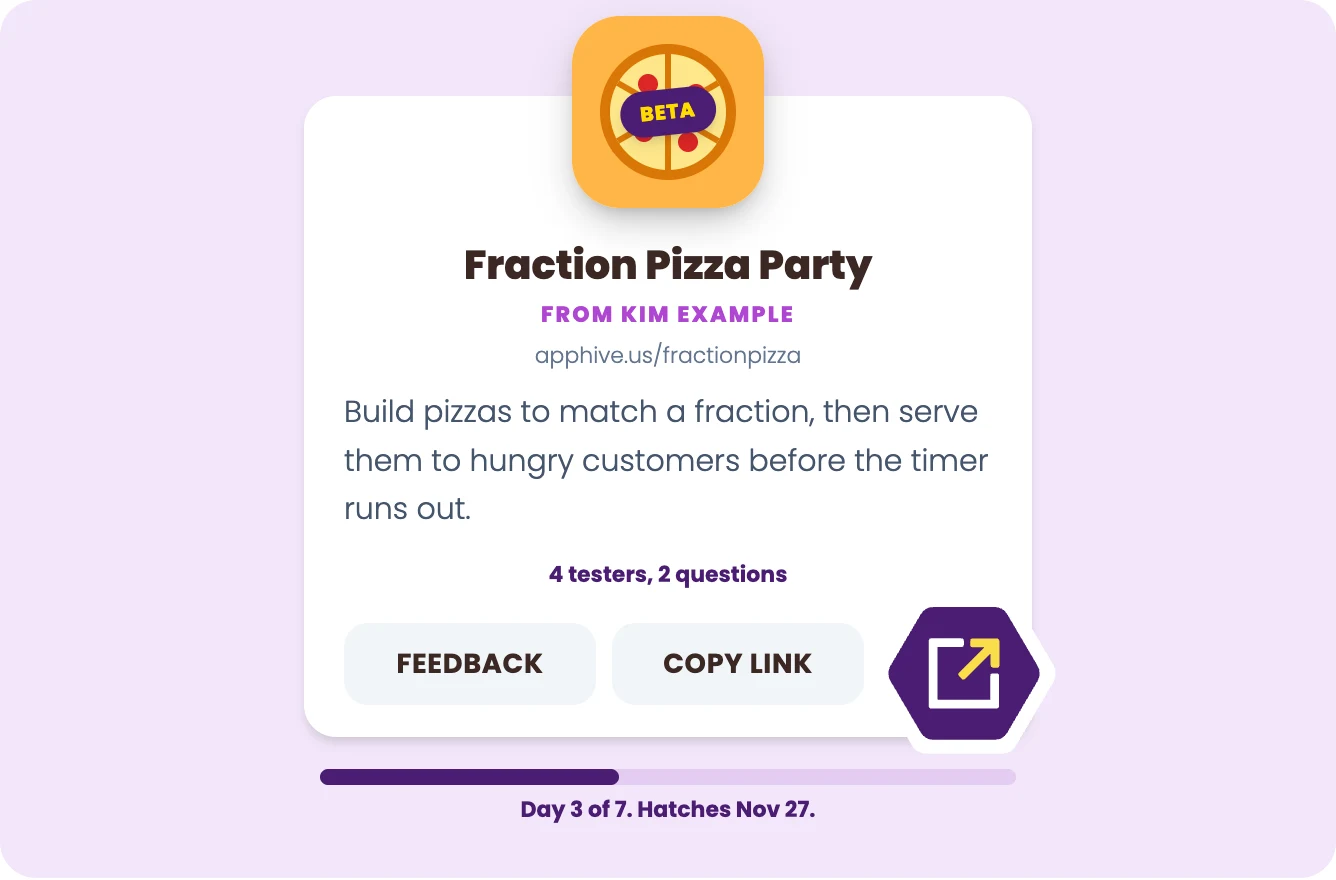
Your app still works at its apphive.us address during the beta. That means you can keep using it with your own students while other teachers try it out, too.
A beta lasts a week. Your app's Info page shows how it's going: what day it is, how many teachers have tested it, and how many said it worked great or had trouble. If you need more time, click Add a Week, up to 90 days in all. If you're ready early, click Hatch It.
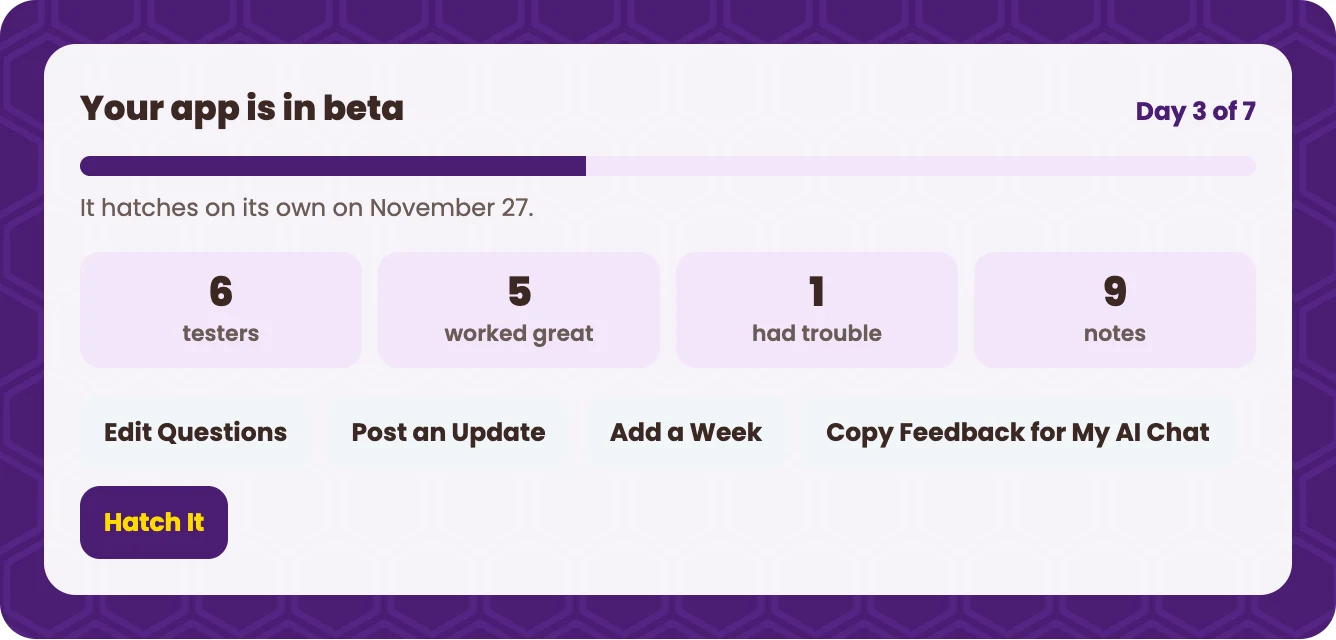
As feedback comes in, you can reply, say thanks, and mark a note Addressed in an Update. When you change the app, use Post an Update to let your testers know you've made changes.
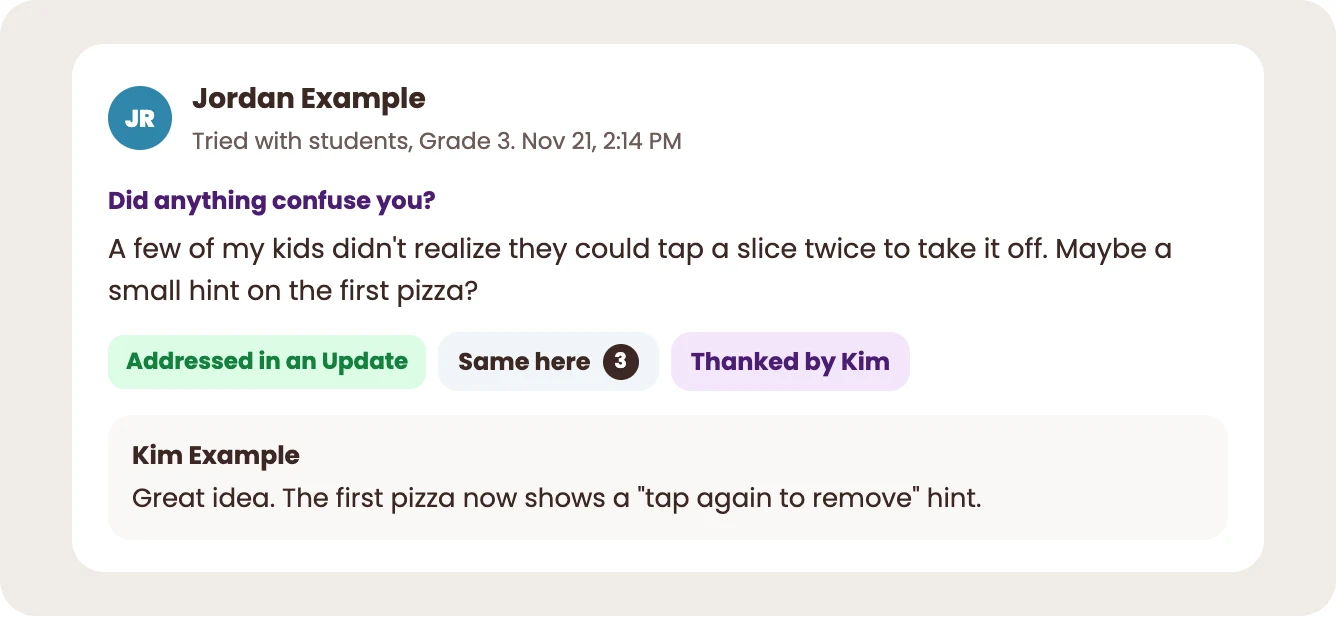
One of my favorite features is Copy Feedback for My AI Chat. Click it to copy all the feedback, then paste it into the AI chat you used to build your app. You can work through the suggestions together and decide what changes make sense. Not every suggestion has to become a change.
When the beta period ends, your app automatically hatches and becomes a normal publicly listed app. Your followers are notified, and the teachers who tested it are thanked on its page. If you decide the app isn't working out, you can shelve it instead of hatching it.
Thanks to the 6 teachers who provided feedback on this app in the Hatchery.
Be a Tester Too
The Hatchery isn't just for teachers who build apps. If you enjoy trying out new classroom tools, you can help make them better, too! Builders and Pros can test any beta app in The Hatchery and share feedback with the teacher who made it.
Open an app in The Hatchery and click Try the Beta. Give it a try, then return to its Info page and select Worked great or Had trouble. Let the creator know whether you tried it with students and in which grades, along with anything else you noticed. You can also answer the creator's questions.
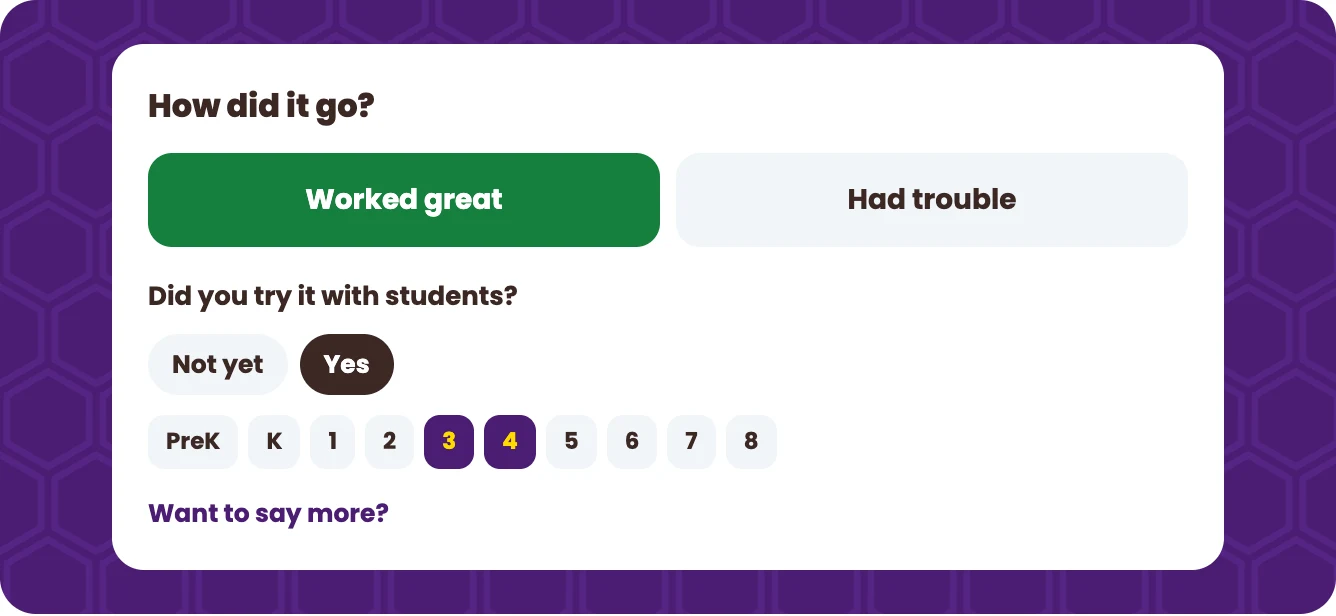
It only takes a few minutes, and your note might be the one that makes someone's app click. When the app hatches, your name is on its page as one of the teachers who helped.
Good Apps Get Better When Someone Else Tries Them
You don't need a beta for every app. But when you're not sure how other teachers or their students will use something you've built, a week of feedback can help you figure out what to improve.
Have an app you're working on? Give it a week in The Hatchery. Prefer trying out apps made by other teachers? Head to The Hatchery and see what you can help improve.
Comments
Sign up or sign in to leave a comment.