
Do you find yourself opening the same Teacher Hive apps over and over? Now you can keep your favorites just a click away.
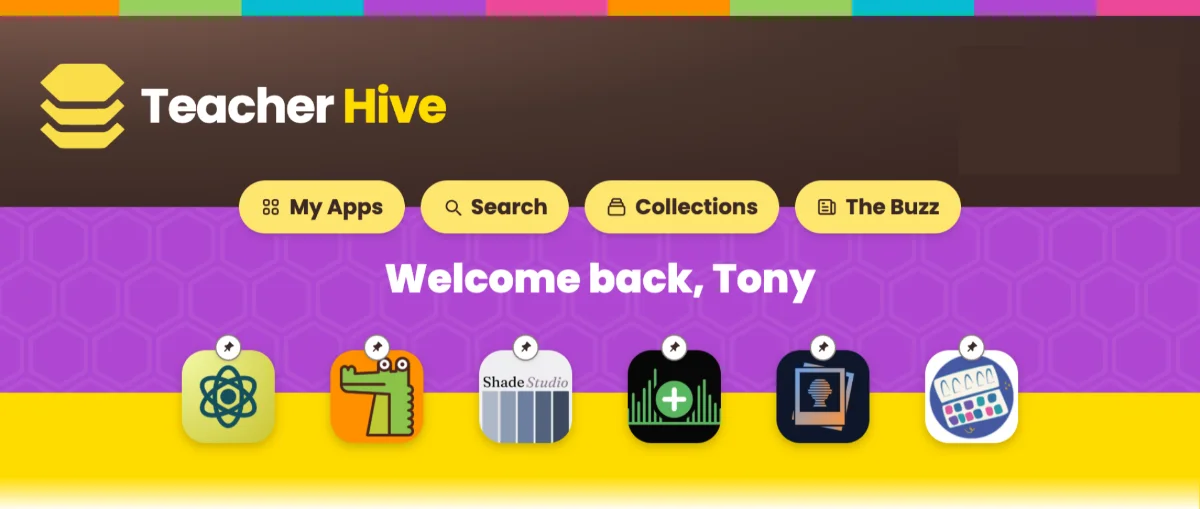
Pin apps to create a row of shortcuts at the top of your Home and My Apps pages. I like to call it the dock. It's a handy way to keep your most-used timers, randomizers, classroom tools, and other go-to apps within easy reach.
Here's how:
- Click an app's Bookmark icon.
- Open the Save to List menu. If the app wasn't already saved, click Manage lists on the popup that appears.
- Check Pinned.
That's it! Once you've pinned at least one app, your dock will appear.
Want to change the order? Simply drag an icon to a new spot in the row.
You can also choose whether to show app names or just the icons. I prefer icons only for a clean look. Go to My Bookmarks and open your Pinned list. Uncheck Show app names on Home page.
Need to remove an app? Just click its pin badge in the dock and uncheck Pinned.
I love having my frequently apps waiting for me every time I open Teacher Hive. It saves a few clicks, and those little time savers add up throughout the day.
Comments
Sign in to leave a comment.