
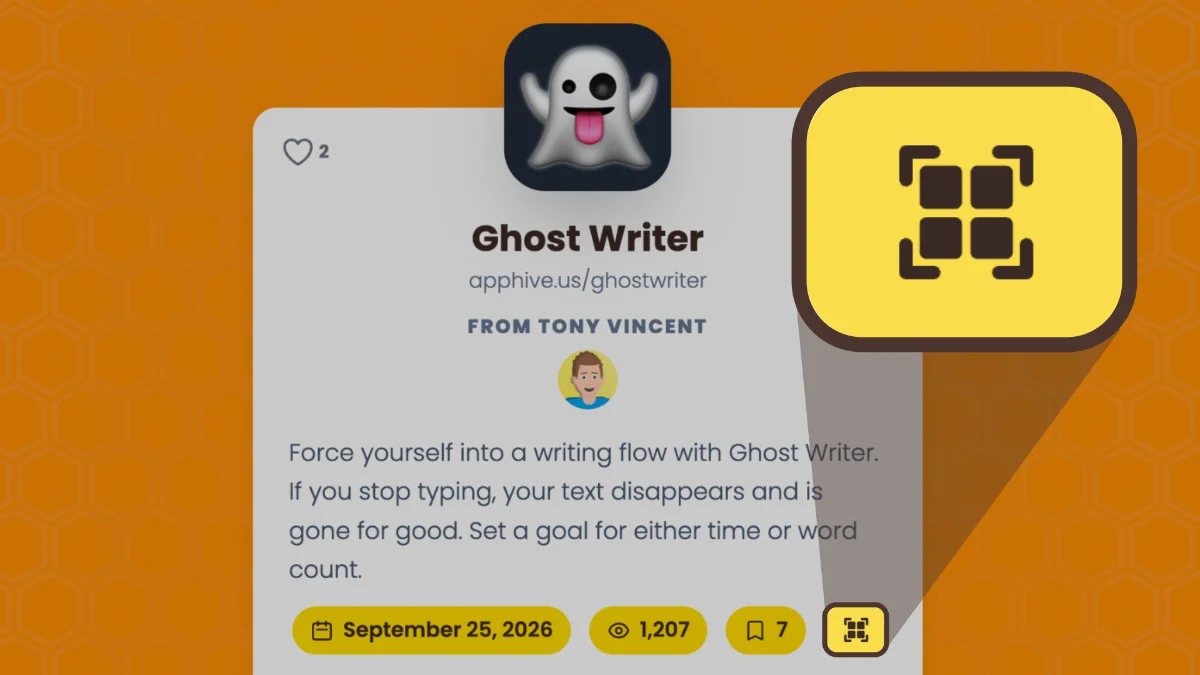
Every app on Teacher Hive has a button on its Info page that looks like a little QR code. It sits right next to the view count. Click it to open the Link & QR Display, a full-screen view made for your classroom screen.
It shows the app's address and a QR code in big, bold type that your students can read and scan from across the room.
The Link & QR Display does a lot more than show a link.
Start a Timer
Let students know how much time they get to spend on the activity. Click the clock in the top corner and set the minutes and seconds. Press Start, and a bar appears across the top of the screen. It shrinks as time runs out, so students can see how much time is left.
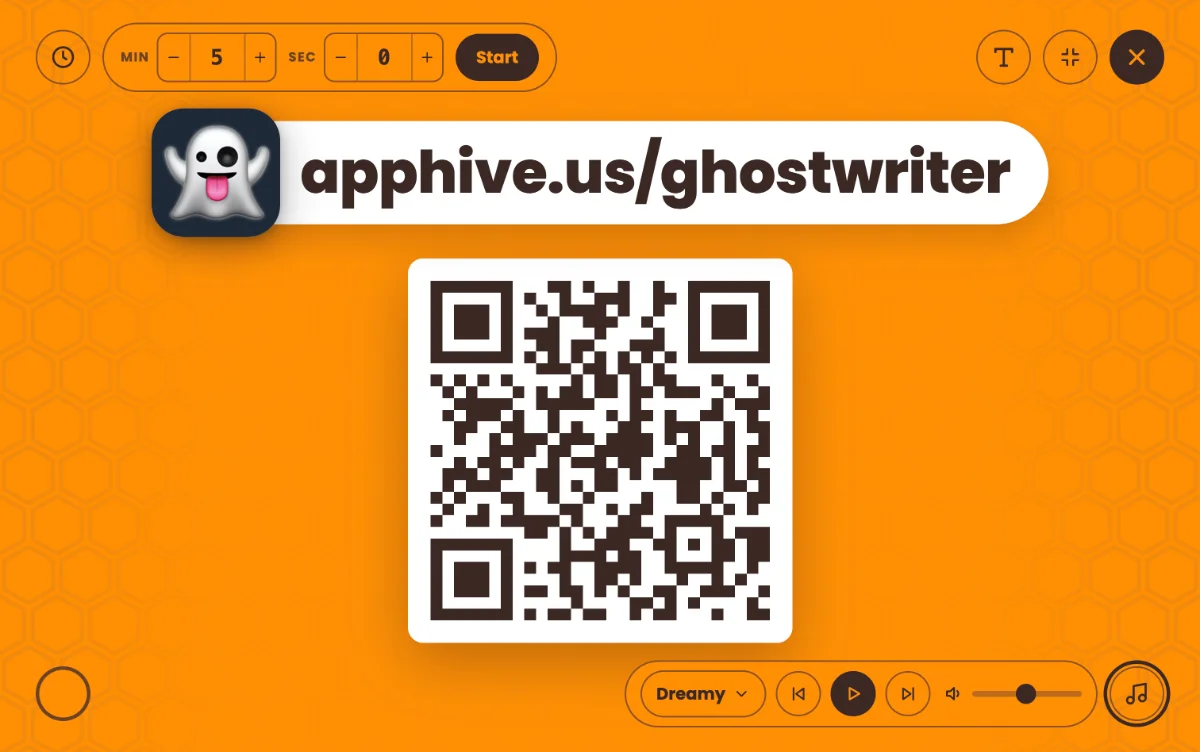
Play Some Music
Set the tone for the activity with background music. Click the music note in the bottom corner to play lofi music made for the classroom. You can pick a mood that fits the moment: Adventure, Bright, Chill, Cozy, Dreamy, Relaxed, Retro, or Upbeat. If the timer is running, the music fades out in the last few seconds. It's a gentle signal that it's time to wrap up.
Add Instructions
Give students instructions and reminders while they work. Click the T button to type text next to the code. It might be "Play two rounds, then try the challenge level" or "When the music stops, close your Chromebook." The text grows to fill the space, so it's easy to read from the back row.
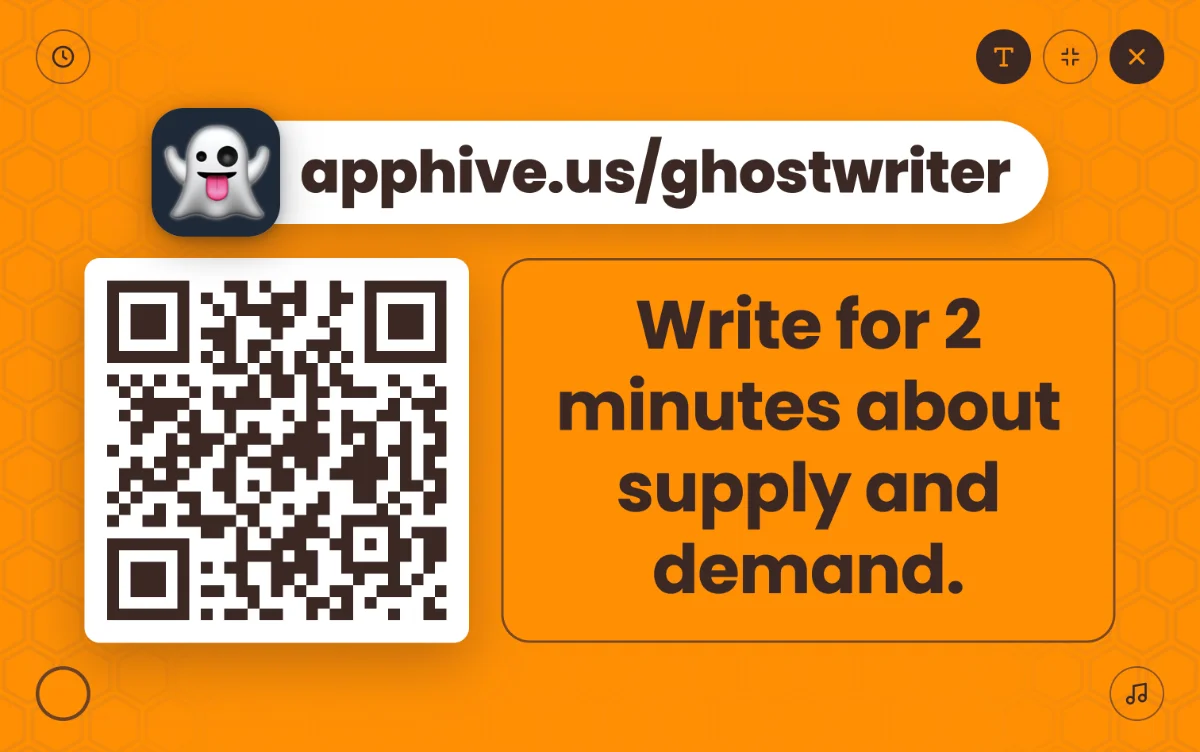
Teacher Hive remembers your background color, music, and instructions for each app on your device, so everything is ready the next time you open it.
Scan From Any Device With Bee There
Phones and tablets can scan a QR code with the camera app, but Chromebooks and laptops don't have that built in. That's why I made Bee There, a QR code reader that runs in a web browser. It works on phones and tablets, and also on Chromebooks and laptops with a camera.

Comments
Sign in to leave a comment.