
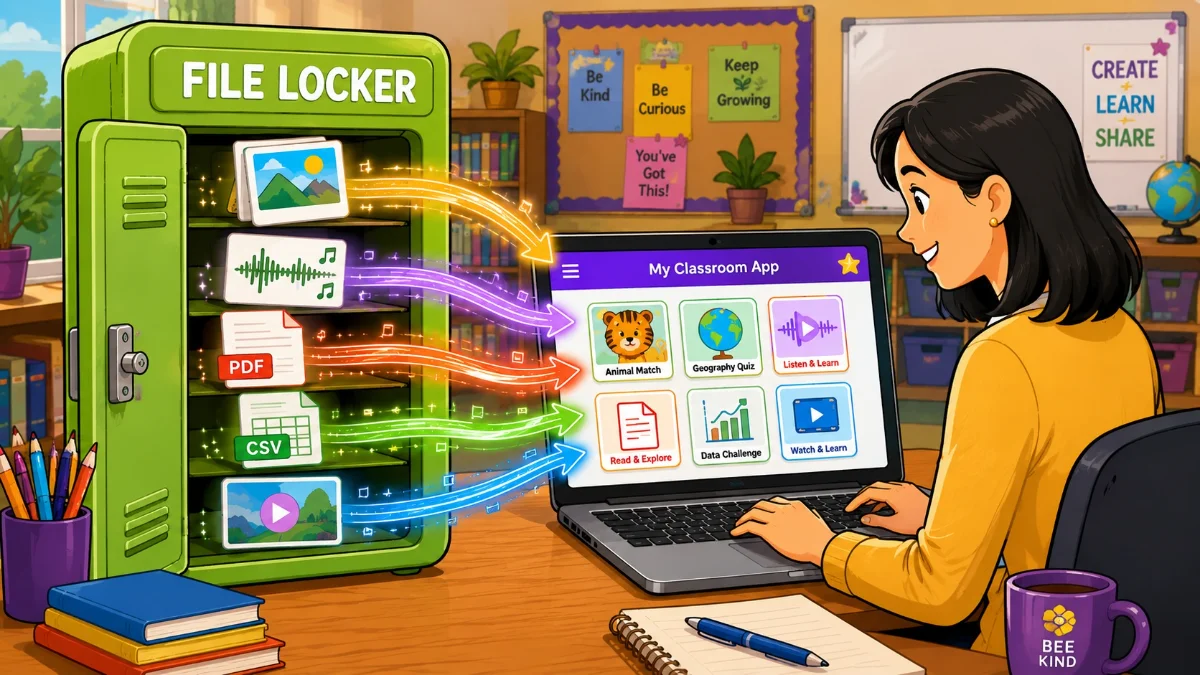
If you've been vibe coding apps, you've probably discovered that getting your own files into an app isn't as easy as it sounds.
"Use this picture."
"Add this sound."
Your chatbot can help you insert those files, but ChatGPT, Gemini, and Claude aren't file-hosting services. They don't give your app a permanent web address for files you upload to a chat.
Sometimes AI works around this by turning an image or sound into Base64 code and stuffing it into your HTML. That can work, but it's an inefficient way to handle files and can make your HTML dramatically larger. Chatbots can choke on that much code. Teacher Hive's HTML file size limit is 900 KB, and encoding images or sounds can quickly eat up that limit.
You might think, "I'll just put the files in Google Drive." You can make that work for some files, but Drive isn't really designed to be a file host for web apps. Getting a file from Drive to reliably display or play in an app can take some fiddling.
There has to be an easier way. And there is!
Meet File Locker
Teacher Hive's File Locker gives your vibe-coded apps a place to get the files they need.
Upload an image, sound, video, CSV, PDF, or other file to your File Locker. Each file can be up to 10 MB. Give it a useful name and label, and Teacher Hive gives you a URL your app can use.
Now you can tell your AI:
"Use this image in the app,” and paste the File Locker URL.
You don't need a huge storage plan to get started, either. Builder users get 50 MB of File Locker storage for free, while Pro users get 2 GB (40 times more storage).
Instead of settling for another emoji, you can use your own graphics. Instead of asking AI to cram hundreds of questions into your HTML, you can have your app load them from a CSV. Instead of writing an audio clip directly into the HTML, you can give your app a URL to the sound file.
And File Locker has some features that make it especially useful for vibe coding educators.
Give Your Files Helpful Labels
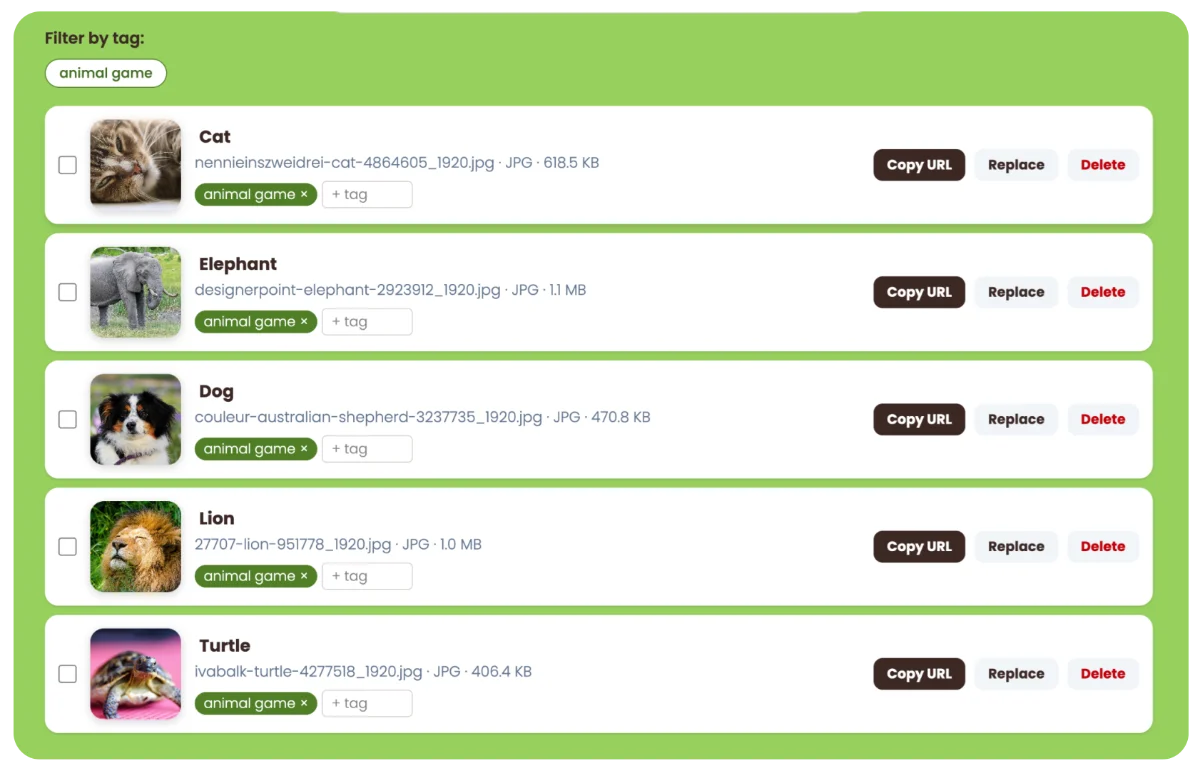
When you upload a file, you can give it a label that describes what it is. The label is separate from the file's actual name, and you can change either one.
Why bother with a label? Because labels are especially useful when you're working with AI.
Imagine you're making a picture-matching game. You upload five animal pictures, but the actual files have names like cat-final.png and IMG_4827.jpg. Those names aren't particularly helpful.
Instead, you could label them:
- Cat
- Dog
- Elephant
- Lion
- Turtle
Now they're easier to identify at a glance. More importantly, those labels can travel with the files when you copy them to your AI chat.
Give AI a Whole Batch at Once
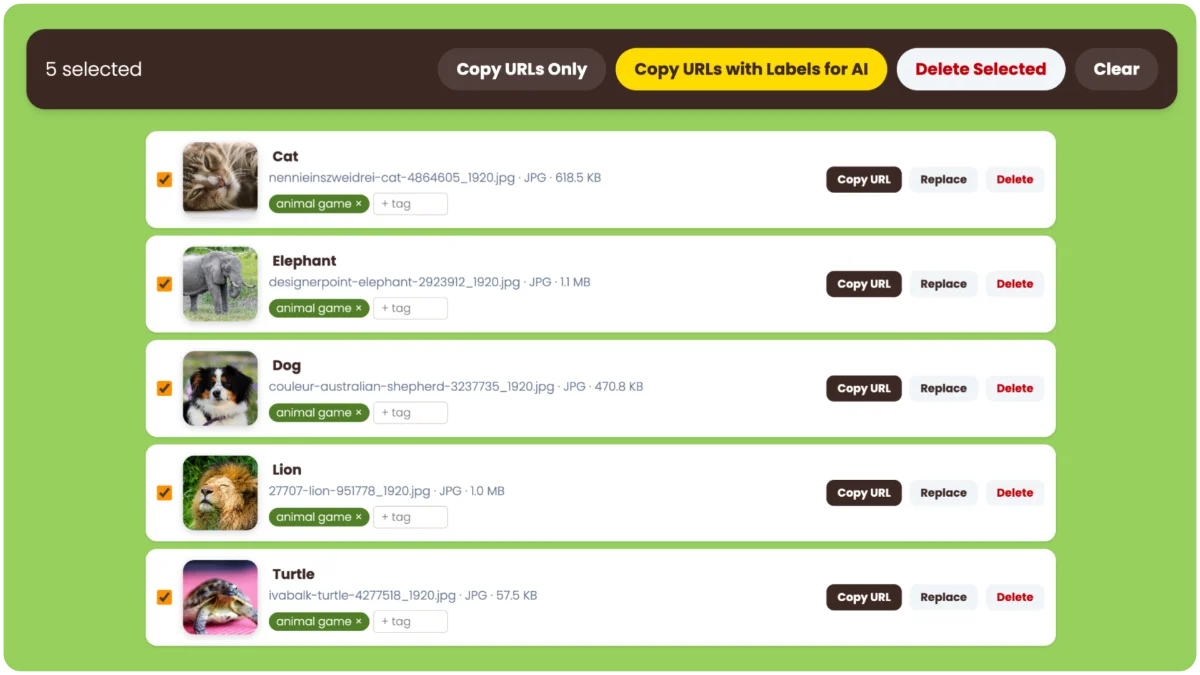
This is one of my favorite File Locker features. You can select files and copy their labels and URLs all at once. That gives you a chunk of text you can paste directly into your AI conversation:
- Cat (image/jpeg): https://files.apphive.us/w3anbu/m6633.jpg
- Elephant (image/jpeg): https://files.apphive.us/w3anbu/bew7y.jpg
- Dog (image/jpeg): https://files.apphive.us/w3anbu/ysmye.jpg
- Lion (image/jpeg): https://files.apphive.us/w3anbu/gphhn.jpg
- Turtle (image/jpeg): https://files.apphive.us/w3anbu/v6hnv.jpg
The AI gets both the URL it needs to access each image and a useful description of what that image represents.
Then you can say: "Make a memory game using these five images. When a student matches the image card with the name card, make the pair disappear."
That's a lot easier than copying and pasting five URLs individually. And when you have dozens of images, this becomes really useful.
You could use the same approach to:
- Create a matching game with pictures of geometric shapes
- Build a geography app with photos of landmarks
- Create a history app with images representing different people or time periods
- Add supporting images to a vocabulary or concept guide
- Build a picture-based sorting or categorization activity
Upload the files, label them, copy the whole collection, and give it to AI.
Keep Files Organized with Tags
You can also add tags when you upload files. Tags are different from labels. A label describes an individual file. Tags help you organize groups of files.
You might tag files with the name of the app or project they're associated with. Later, you can filter your File Locker to show only files with a particular tag.
This becomes especially useful as your collection grows. Instead of hunting through dozens or hundreds of files, you can quickly narrow the list to the ones you need for a particular project.
Replace a File Without Rebuilding Your App
Here's another File Locker feature worth knowing about: when you replace a file, its URL stays the same. That means you can update the file without changing your app's code.
Suppose you make a quiz that gets its questions from a CSV file. Next week, you want a new set of questions. You don't have to ask AI to rebuild the app. Just replace the CSV in your File Locker. The app will use the new file because the URL hasn't changed.
The same works for a logo, title graphic, PDF, sound file, or any other file you've uploaded. Your app stays the same. The content changes.
What Should You Put in File Locker?
Start with something simple:
- Images: Use your own photos, illustrations, graphics, diagrams, or logos instead of relying on emojis.
- Sounds: Add your own voice recordings, sound effects, or music.
- Video: Add short demo clips or mini-lessons. The 10 MB file limit keeps these relatively brief.
- Data: Store questions, vocabulary, lists, or other content in CSV or JSON files.
- Documents: Give your app access to PDFs or other resources.
- Branding: Store your classroom, school, or district logos and graphics.
By default, File Locker files can only be used inside apps hosted on Teacher Hive, which use the apphive.us domain. This prevents other websites from displaying your files, but it also means your AI chatbot can't access them. To make coding with AI easier, newly uploaded files are automatically unlocked for 12 hours, allowing the AI you're using to preview them. You can also manually unlock your File Locker for 12 hours whenever you want to preview files in your AI chat.
Bring Your Own Files into Your Apps
Your vibe-coded apps don't have to be limited to text and emojis. They can use the same kinds of files you use everywhere else in your teaching: images, sounds, video, PDFs, spreadsheets, data, and more.
File Locker makes those files easy to give to AI, easy to organize, and easy to update later.
If you have Builder status or have upgraded to Pro, you'll find File Locker in Teacher Hive by clicking your profile picture in the top-right corner.

1 Comment
This is awesome, thanks so much for sharing this. I’ve been vibecoding quite a bit over the past couple years and taught a middle school “vibe coding mini games” summer camp that was really a lot of fun. I’ve learned it’s important for students to fully attribute how they’re using AI, otherwise I don’t know how impressed to be with their work. But this is a good step forward and I’m going to check it out!
Sign in to leave a comment.